Showing posts with label productivity. Show all posts

Friday, July 5, 2013

Getting Things Done for Project Managers

Most, of the project managers that I know tend to be hyper organized, and always on top of things. It goes with the territory of course. They’re also more likley than most to have a set of processes for managing themselves and they might even be half decent at sticking to it.

But regardless of what you’re doing, if you’re a project manager and you’re not following David Allen’s “Getting Things Done” (GTD) framework for self organization and productivity, you’re probably not as effective as you could be. This post will walk you through the most important elements of GTD from a project managers perspective, and suggest some resources where you can fill in the gaps.

Why GTD?


The core of GTD is it’s agressive embrace of systems. I wouldn’t say it’s built for ease of use, in fact, it’s more like an unobtainable state of zen, for which its followers are eternally striving. There is reward in this striving however.

The aim of these systems is to get ALL of the things that you know or think you need to do out of your head and into a place you trust to retrieve it later. Nothing slips through the cracks.

A project manager’s raison-d’etre is to stop things from falling through the cracks! It’s not easy to obtain a perfect GTD practive, but if you do, you will find see the benefits in the quality and timeliness of the projects you manage.

So let’s get started.

Five lists


GTD is based on the use of five main lists, which can be broken into sub lists. These lists are:

  1. In - The “In” list, is where you should write down any ideas or things you need to do as soon they occur to you. Just put it in this list as soon as you think of it, forget it and continue with your work. You might actually keep a couple of these lists in different places and formats, like your phone and agenda. That’s OK, as long as you are consistent about using them.
  1. Next Actions - This list is the most like a traditional “to-do” list. The important thing here, is you need to phrase things as concrete action. So instead of something vague like “hire php developer”, list the next actual action like “post php developer job description on stackexchange”. You will be amazed at how putting a bit more thought into your action descriptions makes it so much easier to knock off items on your list.
  1. Waiting For - This is where you put everything you need a response for. When you send of an email that you need a response for, it goes here. If you’re waiting on something before you can move forward, it goes here. 

  2. Projects - GTD defines projects as anything with more than one action. Obviously this would include the projects you are overseeing a team on, but it would also include things like “Hiring a php developer” or “Buying a foosball table” 

  3. Some day/maybe - Here is where you put those ideas that you can’t quite tackle yet. This is amazingly effective for getting those nagging “million dollar ideas” off your mind until you can really give them some thought.

For each action, you can include a “context”, which helps you to identify which of your next actions you can tackle in your current situation. Typical contexts would be “computer”, “Office”, “home”, “shopping”.

You might also include specific people as a context, or even energy levels. Some tasks require more focus or emotional investment, others not so much. You could use a “high-energy” or “low-energy” context for these items.

Calendar

The calendar should be restricted only to items that must happen at a specific time. Don’t use it for “reminders” like “check in on email integration feature development” unless you have a meeting scheduled for that time to discuss email integration.

Weekly Review

One of the items that you should put in your calendar, and treat as a concrete event, is a weekly GTD review. I like 10 am every Friday, but you might prefer a weekend. Whatever, go schedule it in now. I’ll wait for you.

These systems can really work for you, and improve your effectiveness as a project manager, but even the most obsessive compulsive people will begin to slip in some of their systems over time.

The weekly review is immensely helpful, and the time it requires is well worthwhile. Try it once, you’ll see how good it feels to have everything under control and actually know what you should be working on.

During the review you will:
  • check off next actions that you’ve already done, or no longer need to do
  • get down things you’ve been thinking about, but haven’t had the chance to capture yet
    • Use a trigger list to help you reach the dark corner of your mind. I suggest starting with the massive one I’ve linked to here. As you go through it the first few times, cut out the parts that don’t apply to you, and add in new ones that are missing.
  • Make sure each project has at least on “next action” associated with it
  • Add relevant contexts to items that are missing them
The weekly review is the hardest part of GTD to stick to. But when you find you don’t have time for it, that’s when you need it most.

Tools

You should use the tools that work for you. A major variant (and point of debate) is how much paper to rely on. I prefer electronic tools, as they make editing, reordering and accessing them much easier.
  • A very popular task list management tool for GTD is Nozbe
  • A calendar is essential, any online calendar will suffice, though I like Google calendar. It’s beyond me how a paper calendar could work for anyone, but hey, whatever works for you.
  • File folders - more details on how best to use them here

Resources

Intrigued? If this sounds like it can help you in your project management practice, there's tons more out there for you.

The book: Getting Things Done, by David Allen
GTD for CIOs, a great blog, useful beyond what the name implies
GTDTimes is the official blog run by David Allen's company, with tons of content for you.

Does GTD sound like something that can be helpful for you?


Wednesday, May 1, 2013

A Guide to Effectively Managing Your Solo Software Project


This article will help you create some very basic systems for managing your solo software project. It won’t help you decide what projects are good ideas, or successfully market your software, but following its advice will make you more likely to get to a finished product, instead of giving up in despair.
 

Who will find this helpful?


  • a hobbyist or pro using their spare time to build something they want
  • an entrepreneur building a minimum viable product for a business idea
  • a freelancer building a web or mobile app for a client
  • anyone who wants to learn by doing

I’m sure many people are already on board with the need for some systems to help guide the creation of their software, but I can literally hear some of your bloodshot underslept eye-balls rolling in their sockets and saying “processes and project management systems are for the office, this is just overhead that gets in the way of getting stuff done".

I beg to differ.

Why you need a system


Even a simple project has multiple moving parts. It may be that you’re capable of keeping track of them all, but that requires effort and costs you brain power, your most precious resource for software development. The reason for this is known as the Zeigarnik Effect:

The Zeigarnik Effect is the tendency to experience intrusive thoughts about an objective that was once pursued and left incomplete (Baumeister & Bushman, 2008, pg. 122). The automatic system signals the conscious mind, which may be focused on new goals, that a previous activity was left incomplete. It seems to be human nature to finish what we start and, if it is not finished, we experience dissonance.

The take home is, unfinished tasks will trouble your worried mind.  Storing your tasks somewhere trusted and finishing them as fast (or faster) than you start them, will free your mind for coding.  A simple system will serve this purpose, while introducing minimal extra effort.

1. Getting Started


It may seem obvious to you what your project is; but until you’ve written it down, and explained it to a few people, you can’t be sure that it’s well defined. Figuring out why you’re doing this project and what your goals are doesn’t take long, and will pay dividends down the road.

Create a one-page project charter to outline the scope, objectives and people involved with your project.  Your charter should answer the following questions:

What are your goals?

Get high level, ask yourself WHY you’re doing this, and what success looks like. If it’s a freelance project, establish this with your client.  If it’s a side project, by straight up about it. Are you developing a minimum viable product to test a business idea or is it just something you think would be cool to see or make your life easier.

Who are the stakeholders?

Whose input is important to guide your project to success? Maybe it’s just you, maybe it’s potential customers or a client.  How will you communicate with these people? How much influence will they have?

What will the product enable you to do?

This is akin to an epic user story for your product. Don’t talk about how the product will do what you want,  focus on what you want.

A basic user story format is:  "As a <role>, I want <goal/desire> so that <benefit>". This keeps the focus on solving the problem and avoiding tunnel vision around specific features for solving the problem.  For example the epic user story for your product might be “As a bowler, I want to know how what I eat for breakfast correlates with my bowling score, so that I can always eat the right pre-bowling breakfast”

How much time are you willing to spend on this?

Particularly if this is a side project, it will almost inevitably take longer than you think. At the outset, we tend to see the work breakdown at very low resolution. Once you’re face to face with a particular task, you see the fine details and nuances much more closely. In one of the most popular quora answers ever, Michael Wolfe deals with the reasons for this very astutely.

When it’s no longer fun and exciting, will you keep plugging away, or will you accept the sunk costs and move on? Decide beforehand how far down the rabbit hole you’re willing to go.

2. Doing it and Managing it

Planning

Since you’ve already created a scope now you just have to break it down into manageable tasks, ideally things which aren’t much more than what you can do in a given evening or two worth of project time.  Keeping your tasks small will help you to see your progress and feel great when you check something off.   

Tasks that are further down the road, will inevitably be more ambiguous; no problem, as they come closer to being executed on, you can split them up further.

Write each of these tasks on a sticky note, we’re going to use them to fill up your personal kanban board.

Tools


The Kanban Board


Find a visible place in your workspace and put up a whiteboard. Keep your kanban board really simple with three columns: Backlog, Doing and Done.

There are two simple rules for using personal kanban:

  1. Keep your work somewhere easy to see
  2. Limit your work in progress. Typically no more than 5 tasks at a time in the “Doing” column.   

Both of these rules would make Zeigarnik happy; they ease the burden of how much you have to store in your limited grey matter and put it somewhere you can trust you’ll see it.

Even when there is extra space in your “Doing” column, have a bias towards finishing a task over starting a new one.  Only introduce new tasks into “Doing”, if everything else is stalled, and there’s absolutely nothing you can do to move it forward.  

If you’re waiting on a domain transfer, go ahead and start working on wireframing. Don’t create a separate column for stalled or waiting items, even if you’re not working on it right now, it’s occupying precious brain cycles.

Time Tracking

No one likes tracking their time, and most time tracking software makes the process even less fun, but if you keep it simple, it can help to give you very valuable data and improve your sense of how long a task really can take.

Use your personal kanban to track when you moved a task into “Doing”, when you moved it into “Done”, and how many hours you spent on it.  You can do this just by writing it on your stickies like so:


Setting up these tools adds minimal extra time to the initiation of the project, and will pay huge benefits by releasing your mind from having to track all these items and allow you to focus on the execution.

Wireframing


I do believe that wireframing and mapping out the workflow of your product are very much worth your time. We use Moqups, which is really user friendly and takes no time to figure out.

Version Control


Even though it’s just you, using version control will help you to undo your mistakes and create an easily trackable history of your progress.

Git Immersion is a great tutorial for setting up a git system. If you want a cloud based repository, with pretty graphics illustrating your branches and merges, Bitbucket’s free plan should be totally adequate for you.

Execution


Here’s the fun part, I hope that creating the charter and setting up your tools only got you more excited about the awesome code you’re going to write.  

This is your project, it’s not my place to tell you which languages, frameworks and other technologies to use, you know what works for you. Unless this is a project intended to help you learn some new technologies and frameworks, you probably just want to get going with the least amount of new learning required.

Scope creep is the great enemy of getting things done. If your imagination, your client or other stakeholders are introducing new and wonderful features to distract you, nip that in the bud.  This is why you created your project charter. Keep it beside your Kanban board, where you can see it and remember what you’d first set out to do. If the project drifts from the charter, make sure there’s good reason for it.

Keep moving, do what you can to make some progress every day to stay motivated.  

3. Releasing 1.0 and/or Closing


Maybe you release your 1.0 and this project blow up into a huge success and becomes your life’s work.  Or perhaps you’ve met the goals of your original charter, but you see potential to go further.

On the other hand, maybe you’re completely done with this piece of software;  it’s served its purpose of satisfying a client, or teaching you what you set out to learn, or is now serving you as a handy little tool.

Either way, upon completing the first version of your project, it’s worth doing some work to close it out.  The scale of this effort really depends on the project.

At a minimum, you should archive your post it notes somewhere safe.  When starting your next project, they’ll be useful for remembering what tasks and time commitments were required last time.

Now sit down, have a beer, and contemplate how awesome your shiny software is.


From D.A.K Photography


References and inspiration:


-

Wednesday, March 13, 2013

How to Do Remote Work the Right Way: 13 Dos and Don'ts


In your day so far, how many people have you interacted with who weren’t in the same room as you?  The ease of communication has increased the amount of remote workers and distributed teams. This trend will continue, despite recent moves made by BestBuy and Yahoo to curb remote work.

This is the situation for the team behind PMRobot and part of the inspiration for our online project management app. Our team members work from their homes or in co-working spaces across 3 time zones in Canada. These are some of the things that we’ve learned about making it work.


The Dos:

1. DO use collaborative tools that promote simplicity of interaction

Google Drive (formerly Docs) is our favorite tool for creating and sharing documents. The ability to collaboratively edit and comment, as well as store any kind of file, in seemingly unlimited amounts are hugely useful.

Skype is ideal when higher bandwidth communications are needed. If you need a longer phone call, you might as well go for a Skype conversation - using video adds an extra layer of context.

Google Hangouts is emerging as another very useful tool, which is easy to get into if you’re already using Google Apps, and doesn't require a desktop client. In the past, I’ve have had some trouble with the connection, so if you’re attending an important meeting with a client or other external contact, I'd recommend using Skype.

For wireframing, we use Moqups, which at this point is completely free and very user-friendly, but doesn't yet support collaboration. For collaborative wireframing, Balsamiq is a great option.

A tool for managing your projects is also helpful, much better than a random assortment of spreadsheets and to-do lists. If you’re a digital agency or software consulting firm, PMRobot has been powering remote teams for three years now.

2. DO meet in person at the beginning of the project

In truth, communicating complex ideas and building relationships is more difficult over distances. Meeting in person beforehand is important for developing trust and alignment of goals.

You have a lot to accomplish during a project kickoff meeting: Trust is established, goals and expectations are hammered out. Even if you’re not following a waterfall model, a common understanding and preliminary specifications need to be determined at the beginning.

3. DO ask for estimated deadlines, and follow-up if they aren't met

When you’re not co-located, you can’t simply turn to the desk beside you and ask about a piece of work. Similar to a kickoff meeting, individual tasks or stories require more communication before work begins. Asking the person doing the work to choose his or her deadline not only sets expectations, but empowers him or her to set their own bar and succeed on his or her own terms.

If the problem turns out to be more work than expected, it might not be worth doing. Getting an estimated deadline from the person doing the work ensures they’re working toward a finite goal. Following up after the deadline reinforces accountability, provides a check-in, just in case things aren’t going as planned.

4. DO use a chat tool 

Email communication has its strengths, but it’s also time consuming and has a slow feedback loop. A simple chat tool removes a lot of the friction to initiating a discussion and has the advantage over email of a faster response time.

Anything works, Hipchat, Google talk, AIM, Skype or even mIRC. Just make sure you play by the common chat rules of conduct. Respect your colleagues’ “busy” status so they can dive deeply into a problem without interruption, but also ensure you make yourself “available” when you’re checking and sending emails or other less involved tasks.

5. DO set up a phone call if the email conversation is getting emotional

An over reliance on email drags things out and causes tension and writing an email probably takes longer than you think. A few 20-minute emails add up to a few hours pretty quickly - eating up your time and the recipient's! Emotional emails can take even longer to write, and then more time still spent picking up after the fallout later on.

As soon as you realize that you’re about to send an emotionally charged email, get into your chat tool and set up a call instead.

6. DO Answer questions within a MAXIMUM of 24 hours

Unanswered questions lead to stalled tasks. Stalled tasks lead workers to start new tasks. Further stalled tasks compound, creating a pileup of unfinished business. Having too much work in progress is distracting and demoralizing. Be prompt in your responses to keep open loops from accumulating.

Knowing how important this promptness is, we built a question-asking feature into PMRobot, it gently follows up by email, and allows a response to be sent back via email.

7. DO Have additional work spec'd and queued up

Inevitably, some tasks are bound to be stalled due to unavoidable circumstances. Have other work ready to go for when that happens. If you're using an agile project management methodology like Scrum or Kanban,  you must be disciplined about having your tickets, or stories, planned and ready to go in advance.

The Don’ts:

8. DON'T email file attachments

This common practice is without a doubt THE fastest way to create mass confusion and ensure that you spend a lot of time digging through your inbox searching for version-control salvation.

This is why we use Google Drive to make changes and add comments within a single, shared document - it’s simple. Dealing with files appended with “-r2”, “-rev3” or “-jm-edit4” is frustrating and it’s rare that anyone actually goes back to the old files for reference.

Keep everyone on the same page, literally, by avoiding unnecessary version-control issues with email attachments.

9. DON'T interrupt people unless absolutely necessary

The biggest advantage of working remotely is the ability to work uninterrupted and make your own choices about when to focus on the work and when to delve into communication with your team members.

If there is something you need to get clarity on and need higher bandwidth voice communication for, use a chat tool to set up a time to talk on the phone. This has the additional benefit of letting people prepare, instead of having to suddenly switch gears for an unexpected call.

When in doubt, practice a little role reversal in your head. Would YOU want to be interrupted for this specific topic or could it wait?


10. DON'T bring in more people than necessary on conference calls

Meetings are rampant and massively time consuming. Play to the strengths of being distributed and let team members focus on their work. If a meeting needs 20 minutes, schedule it for 20 minutes, not 30, and respect that time allotment. If a participant on a call has said their piece and is no longer needed, let them drop off. Otherwise, you're wasting their time, and draining their energy to listen in on an irrelevant call.

To pull this off, set a timer on your phone for ten minute increments. Each time the timer goes off, look at the attendee list and see if anyone can be spared.

11. DON'T let roadblocks hold up the project

Overcoming roadblocks is a high priority. It’s tempting to move on to a new piece of work, and in rare cases, that’s all that can be done. However, focusing on pushing through roadblocks helps limit the work in progress and actually get things done more effectively. If there is a project manager or product owner, let them know as soon as you've done all you can to move forward, so that they can begin clearing the block.

PMRobot lets you mark a blocked ticket once you’ve done all you can for the time being, letting you move on, but keeping it present and within view so you remember to resolve the issue as soon as possible.

12. DON'T send emails when you're angry or frustrated

Queue them up as a draft, wait an hour, then edit. Delay again if you're still angry.

Negative emotions can be one of the most time-consuming and inefficient time sucks, and anger inevitably clouds your better judgement. If you’re writing it in an email, then it’s not urgent, right? So stop staring at it and thinking about whether or not to hit send. Walk away from it for an hour.

Depending on your disposition, you may have to repeat this a few times. Just remember, it’s better to err on the side of caution. You’re less likely to regret a witty retort you didn’t make, than an offensive email that gets BCCd to all of your upper management and HR.

And Finally:

13. DON'T do it all in email

You may have noticed a recurrent theme in this article; encouraging you to find alternatives to email when possible. DO NOT keep your email client open at all times, this is the best way to spend all your time reacting to outside forces and wonder what you got done at the end of the day. Email is in many ways the lowest common denominator for communication. Consider who you’re emailing and for what purpose - and then consider your alternatives.

Used properly; however, email can be very powerful, allowing you the time you need to express your ideas clearly and pull together all the links and other information needed to get your point across. Make sure you’re writing clear emails, use numbered lists/bullets more often than paragraphs and when it gets really long, write a short introduction so the receiver knows what they’re about to wade into.

Email is just one of many tools on your program management communications tool belt - prove you are a true master of project communications by knowing when NOT to use email as your most effective strategy.


The Benefits of a Project Management Tool


Using a web-based project management tool is one way to minimize your email use. A tool will often allow you to split your conversations into smaller pieces that are directly related to a specific piece of work, which can then be referenced when it comes time to do that work. PMRobot is been designed and developed Syllogistic Software, a team who've been working remotely for more than five years, living in Toronto, ON; Victoria, BC; Austin, TX; New Zealand, Thailand and wherever else we feel like working from.

For digital agencies and software consultants looking for a solution to your remote working challenges and want clear communication, faster execution and happier clients, visit PMRobot.com now.
-

Sunday, December 9, 2012

New Inline Quickedit feature

Here at PMRobot, we're always looking for ways to reduce the number of clicks.

We call our latest improvement the "Inline Quickedit".

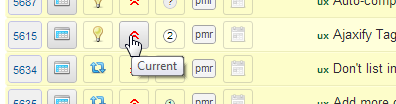
To use the Inline Quickedit feature, simply click or tap a field in the List view:


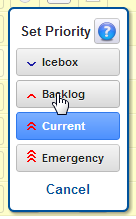
You’ll be presented with a touch-friendly pop-up to quickly select the field:


Two clicks and you’re done!

This feature currently works with:
  • Ticket Type
  • Priority
  • Effort
  • Milestone
  • Assignee

Monday, November 5, 2012

Even easier...

After carefully listening to our users' feedback, we've launched an update of PMRobot that's even easier to use.

So what's new?

1. Project selector with search

Now you can find your projects quickly with typeahead search:


It's placed prominently at the top left in a large font, for easy access.

2. All your settings in one place

You said: "I can't find my settings!"

We listened :-)

No more hunting around. They're all organized in one place now. Just click More... Settings.


3. Hide unwanted features:

You said: "My screen is cluttered with things I don't use!"

We listened.

Too much clutter? Clean it up by turning off the features you don't use!


Organization primaries can change this at https://pmrobot.com/organization/info

4. Feedback and Knowledge Base

Have some more ideas for us? Not sure how to do something?

Check out our need feedback and knowledge base at:
http://feedback.pmrobot.com

Thursday, August 9, 2012

Perils Of Multitasking infographic

As a follow-up to my productivity post entitled "Multitasking is toxic", Peter Kim emailed me a great infographic with some stats about how bad multitasking really is for you.

Have a look:
Multitasking Infographic


The original can be found here.

Monday, July 2, 2012

Drag and Drop Sorting + Gantt Charts

This week we introduced two great new features!

Now you can spend less time managing and more time getting things done.

Drag and Drop Sorting


Instead of dealing with the abstract notions of high, normal, and low, we now use the Agile concepts of Current, Backlog, and Icebox to give an indication of the order in which groups of tickets will be worked on.

Within these main priority levels, you can simply drag tickets up and down to fine-tune the exact ordering of individual tickets.

Try it now at: https://pmrobot.com/tickets/sort

Gantt Chart


This week we also introduced a new beta feature: the Gantt Chart.

A Gantt Chart gives you a quick, visible overview of upcoming milestones and resource allocations.

You can also see at a glance which tickets have not yet been assigned.

Give it a try right now at: https://pmrobot.com/chart/gantt

Don't forget...


PMRobot keeps everything in one place, making your job easier.

No more information scattered across 7 different tools.

With PMRobot, there's only one tool to learn, and one place to search for all your files, tasks, and project information.

Questions or ideas? Contact us at https://pmrobot.com/help


About the author: Jason Hanley slaves tirelessly, spending his days and nights devising new ways to make software project management faster and easier. While PMRobot is managing his projects, he enjoys riding camels in the Sahara desert, teaching English in Spain, and exploring the south of France.

Sunday, May 20, 2012

Top 3 Worst Ways to Manage a Team

Five years ago, I wrote a short post about the worst possible ways to manage people. These are still popular techniques that managers often fall back to.

So what are these common management traps you should avoid?

#3 - The Ostrich Mentality

People fighting? Project running eight weeks behind schedule? New technical challenges are making success look unfeasible?

No problem! Carry on, business as usual. No need for change. Let's just keep doing things the way we've always done them.

This is what I call the Ostrich Mentality. Just stick your head in the sand and hope everything turns out alright.

What do to instead?

Admit problems frankly, have a discussion, and take action to change things.

Not tomorrow, but today!

#2 - The Ditch Digging Theory

This is when a manager believes that every task in a complex business process is equivalent to simple manual labor.

When a project is running behind schedule, they simply add more people.

This concept works fine -- if you are indeed digging a ditch. If you're doing anything more complicated, it fails miserably.

Adding more people to a project that is already late can actually make it take longer! I discussed the details in my post about keeping your teams small.

What to do instead?

Realize that business and information technology projects are complex beasts, involving specialized knowledge, and lots of communication.

If a project is running late, resist the urge to add more people to speed it up.

Instead, focus on trimming the scope to the bare essentials, and getting a solid deliverable out there. Then, create a follow-up project for the remaining lower priority pieces.

#1 - The Warm Body Theory

This one bothers me personally the most, probably because it is so prevalent and so toxic.

When managers have "warm bodies" (ie. people sitting in an office or meeting room) in their field of view, they equate this to productivity.

Nothing could be further from the truth.

If your employees are physically present at the office 10-12 hours a day, how many of those hours do you think they are mentally present, and actively contributing to the project?

Pulling five people into a two-hour meeting to "discuss the schedule" might burn $1,000-$2,000 of budget, and accomplish next to nothing.

What to do instead?

Make the schedule (the real schedule) and task commitments public and accountable.

Track everything in a live, accurate system that the manager, workers, and clients can access and update in real time.

Embrace flexible working hours and telecommuting. Let people balance their work and life commitments.

Once you've clearly defined what needs to be done, and who is responsible for doing it, you won't need to chase people down every five minutes for a status update!

Summary

To briefly summarize, here are the top 3 management "techniques" to avoid, and how:
  • The Ostrich Mentality: Keep your head above the sand and take action!
  • The Ditch Digging Theory: Don't add more people to a late project!
  • The Warm Body Theory: Track accountability, and let people take responsibility!


About the author: has owned a software consulting company for 9 years, and is the founder of PMRobot.

Thursday, April 26, 2012

PMRobot Mobile: Always on the move

Let's face it -- People are always on the move.

You're not always in front of your desktop or laptop.

Suppose you're on the train, heading to work, and want to check in on your notifications and answer a few questions.

Now it's easy!

Just open your mobile web browser and sign in at same place as always -- https://pmrobot.com/home

PMRobot will automatically adjust to your screen size and present you with an optimized mobile experience.

This works on just about any device with a modern browser that supports CSS media queries.

Here are some examples on iOS (iPhone/Apple):


...and a few screenshots running on Android (Samsung/HTC/Google/etc.):


It works best on modern browsers like the ones in iOS and Android, but we'd love to hear how it looks on your device.

Happy trails!

Sunday, December 11, 2011

PMRobot Google+ Hangout

Just a quick little note that this Wednesday, December 14th at 11:00am Eastern, we'll be hosting a Google+ Hangout to chat about the latest PMRobot release.

Put PMRobot in your Google+ circles and join us to learn and give your feedback.

In the meantime, check out our new front page video explaining how PMRobot is the best all-in-one solution for software consultants!

Sunday, November 6, 2011

You can't assign 1 task to 2 people

This is one of my biggest pet peeves with certain project management software packages out there.

You cannot assign one task to more than one person!

And yet there is tons of project management software out there that lets people adopt this bad practice. Have you ever tried asking a group a question? It just leads to individuals assuming that someone else will take care of it.

You: "Hey team, Is the release going to be ready for Friday?"

Developer: "Well, I've done everything I can, but the client hasn't sent their logo yet."

QA Person: "The file interface is still buggy, but I'm not sure if I'm supposed to log bugs about that yet."

What's wrong here? There's no clear responsibility and no one owns the task.

Responsibility is key to all projects, and every task needs one person to be ultimately responsible for moving it forward.

This does not mean that multiple people can't collaborate and contribute towards the solution, but multiple assignment is often very dangerous.

Instead of both people taking responsibility, each one assumes the other one has it covered, and nobody takes any action.

This is why in most companies, there is a single CFO who is ultimately responsible for the finances or a COO who takes ownership of sales and operations. They would not be able to succeed without support from their teams and colleagues, but at the end of the day, they are responsible.

From the very beginnings of PMRobot, when it was just a simple ticketing system, we designed it to ensure that a ticket could only be assigned to one person at any given time.

This leaves no chance for ambiguity or misunderstanding about who needs to get what done.

If you want to increase your efficiency and reduce the number of things falling through the cracks, make sure you only assign things to one person.

Sunday, October 30, 2011

Boomerang for Gmail Review

As a "follow-up" to Ramy's article about FollowUpThen, I wanted to share my favorite email follow-up service -- Boomerang for Gmail by Baydin.

I've been using it since early beta, and it has become a powerful tool in my email productivity arsenal.

It's basically a snooze button for your email, and integrates right into the familiar Gmail interface.

At $50/year for a personal account, and $150/year for a professional account, it's not cheap compared to Gmail itself.

However, it works very well, is extremely reliable, and could end up being worth the money for someone who sends and receives ridiculous amounts of email. (like yours truly :)

The feature is use most is the basic "Boomerang incoming" functionality. Just tell Boomerang when you want the email to come back (tomorrow 8am, next thursday, etc.) and it disappears and is redelivered at that time.

For power users, here's an example of a more complicated workflow:
  1. You receive an email from Bob asking whether you can meet up next Friday, but you have a tentative meeting scheduled with Mary.
  2. You send an email to Mary asking if the meeting is still on, but click the "Boomerang this message if I don't hear back in 2 days" checkbox.
  3. If Mary responds promptly, nothing happens.
  4. However, if Mary does not reply, Boomerang puts the message back in your Inbox so you can re-ask her, or perhaps give a call or text.

Another feature I use often is the Send Later feature, which is similar to Outlook's Delay Delivery.

I sometimes find myself working at odd hours -- 2am, 3am -- and need to send various emails, like invoices, updates, etc.

Sometimes it might be consider a bit rude to send emails in the middle of the night. What if the recipient forgot to turn off their Blackberry and it buzzes and wakes them up?

I simply draft up the email, press Save, and then use Boomerang's Send Later button. A dropdown lets me specify when (usually "tomorrow morning").

In summary, Boomerang for Gmail is a nicely implemented service that does a great job of filling a void in Gmail's functionality.

Kudos to the folks at Baydin!